iOS Simulator or a real device: what coding agents can test
The iOS Simulator is the Xcode tool that runs an iOS app on a simulated iPhone or iPad inside a Mac. For most changes a coding agent makes, UI flows, layout, logic and tests, a Simulator is enough, and a Macswarm Pod gives Claude Code and Codex three to four of them, pre-booted, with the Latest Xcode. Apple is explicit that a Simulator does not replicate a device's performance or some of its hardware. Pods have Simulators only, so performance, camera, Bluetooth, sensors and a few frameworks need an iPhone or a device farm.
Is the iOS Simulator enough for agent testing?
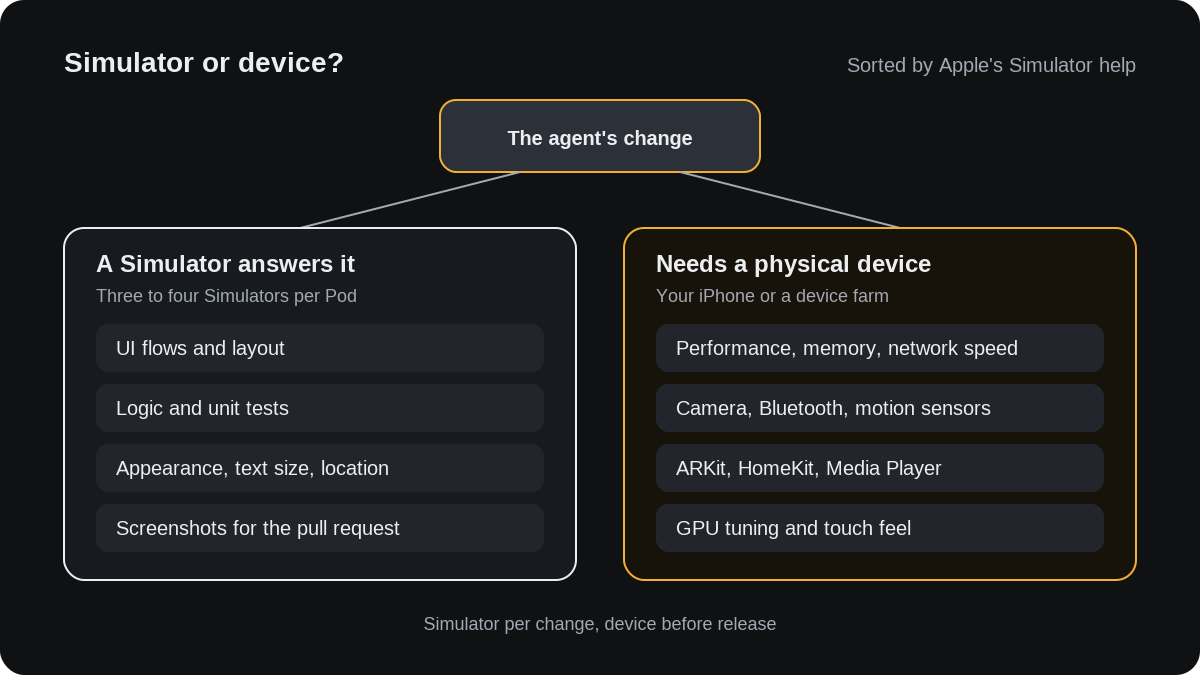
For most changes a coding agent makes, yes. Apple’s Xcode documentation says to use simulated devices to debug an app “on a variety of hardware that you might not have access to”, and in the same paragraph that simulators run on your Mac and do not replicate the performance or features of a physical device (Apple, checked 27 November 2026). So the split is by kind of change, not by importance. A fixed crash in a view controller, a new onboarding screen, a broken layout at a large text size, a failing unit test or a navigation bug can all be checked on a Simulator, and an agent can do that check alone: build, launch, tap through, read the log, take a screenshot, rerun. A change to frame timing, memory use, network behavior on a cellular link, the camera, Bluetooth or a motion sensor cannot be settled there, and needs a physical iPhone. On a Macswarm Pod, Claude Code and Codex get the first group: three to four pre-booted Simulators with the Latest Xcode, and nothing to install.
Free gives 3 Pod-hours once, with no card; how much agent work fits in them depends on how long your project takes to build and test. The rest of this page lists what Apple says the Simulator does not cover, so you can decide which of your agents’ changes need a device.
What does the Simulator not emulate?
Apple’s Simulator Help has a page on the differences between simulated and physical devices (help.apple.com, checked 27 November 2026). Its reasoning is short: the Simulator is a Mac app, so it uses the Mac’s CPU, memory and network connection, which “are likely to be very different in capacity and speed” from a mobile device. The table groups what it lists.
| Area | What Apple’s Simulator Help says | What an agent should do |
|---|---|---|
| Performance | Processing, graphics and networking performance must be tested on physical devices; Simulator results show only relative differences | Treat Simulator timings as relative; profile on a device |
| Hardware | Not supported: ambient light sensor, barometer, Bluetooth, camera, accelerometer and gyroscope, proximity sensor | Mock the hardware layer in tests; check the real path on a device |
| Frameworks | Not supported: ARKit, External Accessory, HomeKit, IOSurface, Media Player, Message UI | Gate the code path and test it on a device |
| API features | Not available: Apple push notifications, the UIBackgroundModes key, UIVideoEditorController, Handoff |
See the push section below; test background work on a device |
| Display | Pixels per point and color gamut of the Mac screen can differ from the device | Do not judge final color or text rendering from a screenshot alone |
| Input | Pointer and keyboard input differ from fingers on a touch screen | Run user testing on a device |
| System | Background apps are suspended; the file system is case-sensitive | Check exact file-name casing on both Simulator and device |
Source, checked 27 November 2026: help.apple.com, Differences between simulated and physical devices.
The Help page is older than the current Xcode, and two of its lines have changed since: push notifications, covered below, and audio input. Treat the list as the documented starting point, check a specific capability against the current framework documentation, and check exact file-name casing on both the Simulator and a device. On audio, the older Help page lists audio input as unsupported except for Siri, while Apple’s newer Device Hub guide documents choosing a Simulator’s sound input, including the Mac’s own (Apple, checked 27 November 2026). That is audio through the Mac; by inference, the iPhone’s own microphones remain a device check.
Graphics and Metal
Apple’s Metal documentation says the Simulator does not try to simulate the GPU of the device you picked: it translates Metal calls to the Mac’s GPU, and the device it exposes has capabilities similar to an Apple family 2 GPU (Apple, Metal in Simulator, checked 27 November 2026). The same page lists texture, buffer and blending limits, says you cannot use Xcode to analyze the memory footprint or measure performance in the Simulator, and advises against designing a rendering engine there.
For an agent this means: a SwiftUI or UIKit change renders well enough to review; a change to a Metal renderer, a shader or a game loop can be built and smoke-tested, but its result is not evidence about the device. Say so in the pull request rather than attach a Simulator frame-rate number.
Can the Simulator receive push notifications?
Partly, and the answer changed with the Xcode release that added iOS 16. Its release notes say Simulator supports remote notifications in iOS 16 when running in macOS 13 on Mac computers with Apple silicon or T2 processors, through the Apple Push Notification service sandbox; each simulator gets its own registration token, unique to that simulator and the Mac it runs on (Apple, Xcode release notes, checked 27 November 2026). Locally simulated notifications, from an .apns payload file or xcrun simctl push, also work but support fewer features; the notes name Notification Service Extensions as one that needs a real remote notification. The production APNs environment is not mentioned, so a production push path still needs a device.
A local push is enough for an agent to test how the app handles a notification payload:
xcrun simctl push <UDID> com.example.myapp payload.apnsThe UDID and bundle identifier are placeholders. Whether a Pod can register with the APNs sandbox and receive a remote push is not documented; write to info@macswarm.com. Local simctl push needs only the Simulator, so an agent on a Pod can run it.
What do you need for a real device?
A physical device adds setup that a Simulator does not. Apple’s documentation lists it: pair the device with your Mac, sign in with an Apple Developer Program or personal Apple Account in Xcode, and let Xcode register the device and create a development provisioning profile when you first run on it (checked 27 November 2026, Apple). In other words, a device run needs a device, a signing identity and a Mac it is paired with.
That shapes the choice for teams that use agents:
- Your own iPhone, your own Mac. Fine for a pre-release check by a person. Not something a hosted agent session can reach.
- A device farm. A hosted service with real phones you run tests on. This is the right next step when you need performance numbers, camera or Bluetooth paths, or a matrix of physical models. This page compares no device farm and quotes no prices; check the vendor’s own pages.
- Simulators on a Pod. For the agent loop on every change: build, run unit and UI tests, take screenshots, open the pull request.
Most teams need 3 for daily work and 1 or 2 before a release. Options 2 and 3 do not replace each other.
What a Pod gives agents for Simulator work
A Pod is one hosted macOS virtual machine on an Apple silicon Mac mini, for one developer, booted from a golden image and destroyed ten minutes after the last session ends. What matters for the Simulator side, from Inside a Pod and Limits and queues:
| In every Pod | Detail |
|---|---|
| Xcode | The Latest Xcode, with command line tools |
| iOS runtimes | Current iOS plus the previous major |
| Simulators | Three to four pre-booted, leased to an agent per launch or test run; an idle lease is released after five minutes |
| Tooling | XcodeBuildMCP for building, launching and driving the Simulator |
| Builds | Two concurrent xcodebuild slots, shared fairly |
| Physical devices | None listed in the published inventory |
| Access | No SSH, no screen sharing, outbound connections only (Security) |
Macswarm facts from Inside a Pod, checked 27 November 2026; prices from the pricing page.
Because an agent picks its device by identifier, give each one its own Simulator; xcodebuild -destination for Simulators shows how. What the agent saw comes back as logs and screenshots in the pull request. Pods bill Pod-hours, not devices: Free is 3 Pod-hours once, Pro $99 a month for 300 Pod-hours then $0.40 each, Team $399 for 1,500 then $0.30. The Simulators come with the Pod at no extra price.
A rule of thumb for agent tasks
Write the device boundary into the task, so the agent does not report a Simulator result as device evidence:
Fix the layout bug on the settings screen. Run the UI tests on an iPhone Simulator,
attach screenshots at default and largest text size, and note anything that needs
a device check (performance, camera, Bluetooth, sensors) in the pull request.
Then sort the checklist this way:
- Simulator, every change: view code, navigation, layout at each text size and appearance, location-dependent behavior with a simulated location, localization strings, unit tests, UI tests, local push payload handling.
- Device, before release: launch time and scrolling performance, memory under load, behavior on a slow or lost network, camera, Bluetooth and sensor features, ARKit, HomeKit, external accessories, Metal rendering, the feel of gestures.
- Unknown until checked: anything the current framework documentation does not state for the Simulator. Check it once on a device and record the answer in the repository, so later agents read it instead of guessing.
For how the agent loop runs on a hosted Mac, see the iOS Simulator for coding agents; for connecting the agents, the Claude Code quickstart and the Codex quickstart.